If you’ve ever stood in front of an engraving and milling machine (let’s be real— I’ve spent more nights than I can count troubleshooting these bad boys alongside our team of machinists) watching a piece of aluminum or brass transform from a blank slab to a custom part, you know there’s nothing quite like that feeling. But for new operators (even seasoned ones switching from laser cutters or 3D printers), programming these machines can feel like staring down a 10,000-line code manual with no roadmap. I’m Jake, part of the customer success and product team at our shop that’s been supplying engraving and milling machines to small fabrication shops, custom woodworkers, and aerospace startups for over a decade. I’ve walked dozens of teams through their first successful program, and today I’m breaking down exactly how to do it—no jargon, no fancy gimmicks, just the step-by-step process we’ve refined over thousands of projects. Engraving and Milling Machine
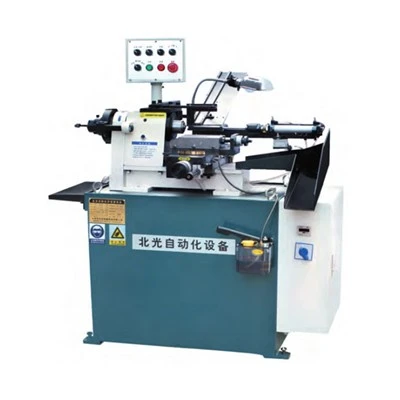
First, let’s get one thing straight: programming an engraving and milling machine isn’t about memorizing a secret code. It’s about translating your design into language the machine can understand, while accounting for tiny, critical details that separate a perfect part from a scrap piece of metal. We’ve seen too many new operators skip the prep steps and crash a tool into a workpiece— that’s $500+ in tool damage and hours of lost work, all because they skipped one small step. So let’s start with the foundational work before you even open your design software.
Step 1: Prep Your Workpiece & Design (Don’t Skip This—You’ll Regret It)
I know, I know—you’re excited to dive into coding, but this is the make-or-break part. Think of it like baking: you don’t toss flour and sugar into a bowl without measuring, right? Same here. First, you need to know three non-negotiable specs about your workpiece: material type, size, and desired final finish.
If you’re working with soft materials like wood, acrylic, or aluminum alloy (6061, the workhorse of small projects), you can use a 1/32” or 1/16” flat end mill for rough cuts. For harder materials like tool steel or titanium, you’ll need a carbide end mill, and you’ll have to slow your spindle speed way down—we’ve had customers test our machines on titanium without adjusting speed and snap three tools in 10 minutes. Pro tip from our service team: always check the material’s “chip load” rating before picking a tool. Chip load is how much material the tool removes per tooth per revolution—get this wrong, and your tool will either dig too deep (ruining your part) or glide too light (wasting time).
Next, align your workpiece securely. This is where our machine’s integrated laser edge finder comes in handy, but even if you don’t have that accessory, use a dial indicator to zero the X and Y axes so the machine knows exactly where the part starts. If your piece is slightly warped (common with thin aluminum sheets), add a surface probe to your setup—this will compensate for tiny height differences so your cuts are uniform across the entire part.
Now, open your design software. For most engraving and milling projects, I recommend Fusion 360 (free for hobbyists, and robust enough for small to medium runs) or SolidWorks for more complex 3D parts. The key here is to avoid overcomplicating your design. If you’re engraving a logo, keep lines at least 0.02” thick—any thinner, and the tool will skip or break. If you’re milling a pocket, add a 0.005” to 0.01” “tolerance gap” between your design and the final part size—machines are precise, but not perfect, and this tiny buffer will save you from having a part that’s too tight to fit.
Once your design is done, export it as a DXF or STEP file—these are the universal formats engraving and milling machines read. Avoid JPEGs or PNGs; they’re image files, not vector, and the machine can’t distinguish between a line and a blurry edge.
Step 2: Choose Your Programming Language & Toolpath Strategy (No, You Don’t Need G-Code Expertise)
This is the part that scares most new operators. “Do I have to write G-code line by line?” Let’s clear that up: for 99% of small to medium projects, you don’t. Modern engraving and milling machines work best with CAM (Computer-Aided Manufacturing) software that automatically generates G-code from your design, and most setups only require you to pick a toolpath strategy.
Let’s start with the two most common toolpaths you’ll use: contouring and pocketing. Contouring is for cutting the outer shape of your part, like a custom phone case or a wooden sign’s border. Pocketing is for cutting out an indent, like a slot for a hinge or a recessed logo. Then there’s engraving, which is a lighter, shallower cut to add text or details to the surface.
For contouring: set your stepover (the distance the tool moves sideways between cuts) to 50% of your tool’s diameter for roughing, and 10% for finishing. Roughing is the first, deeper pass that removes most of the excess material, and finishing is the lighter final pass that gives you the sharp edges you want. For example, if you’re using a 1/8” end mill, roughing stepover is 0.0625”, finishing is 0.0125. This is non-negotiable—roughing with a wide stepover saves time, but finishing with a narrow stepover prevents tool marks.
For pocketing: use a “zig-zag” toolpath for most projects—it’s fast and works well for soft materials. For hard materials or tight corners, use a “parallel” or “offset” toolpath to avoid the tool having to turn too sharply, which can cause vibration. Vibration is the enemy of precision—we once had a customer who was milling a custom gauge face and skipped this step, resulting in wavy lines that made the gauge unreadable.
Now, G-code: if you do ever need to edit a line (for example, to adjust a cut depth), make sure you use standard modal G-code formats. Our team trains all our customers to recognize key lines: G00 is rapid move (no cutting), G01 is linear feed move (cutting), S15000 is spindle speed 15,000 RPM, and F10 is feed rate 10 inches per minute. If you’re editing, never change a G-line without checking that the new number is compatible with your machine’s firmware—we’ve had a customer accidentally change a S line from 15000 to 1500, and the tool just dragged across the aluminum, leaving a deep scratch.
Wait—what if you’re working from a hand-drawn sketch, not a digital design? No problem. Most modern engraving and milling machines have built-in touchscreen programming that lets you draw directly on a tablet or import a scanned sketch, then convert it to a toolpath automatically. We’ve used this feature dozens of times for custom wood signs where the customer only has a sketch, and it cuts programming time from hours to minutes.
Step 3: Set Up Machine Parameters & Do a Test Run (Safety First—Always)
Okay, you’ve got your toolpaths, you’ve exported your G-code, now it’s time to send it to the machine. But before you hit “run,” you need to set three critical parameters: work offset, spindle speed, and feed rate.
Work offset (also called G54) is the point where the machine knows “this is where my part starts.” Most machines let you set this by touching the tool to the top-left corner of your workpiece, then pressing a button—our machines have an auto-touch feature that does this in 10 seconds, no manual adjustments needed. If you get this wrong, your part will be cut in the wrong place or even off the workpiece entirely.
Next, spindle speed and feed rate. As I mentioned earlier, these depend on your material and tool. For 6061 aluminum with a solid carbide end mill, spindle speed should be between 10,000 and 18,000 RPM, feed rate between 10 and 30 IPM. For acrylic, slow it down to 8,000–12,000 RPM, feed rate 5–15 IPM—run it too fast, and the acrylic will melt and leave a cloudy mess. We keep a quick reference chart in every machine’s operator manual, so you don’t have to Google it mid-project.
Now, the test run. This is non-negotiable. Don’t just send the full part run—set the machine to move at 10% of its normal speed (called “rapid test”) and watch every single move. Make sure the tool doesn’t hit the vise, the workpiece is held tight, and the toolpaths are aligned with your design. We always tell customers to put a block of scrap material under their actual workpiece for the test run—if the tool hits something unexpected, it’ll only damage the scrap, not your expensive final part.
One last safety tip: always turn on the spindle before lowering the tool into the material. I can’t tell you how many times I’ve seen a new operator lower the tool first, then turn on the spindle, and the tool just scrapes the surface instead of cutting—ruining a brand-new tool and taking twice as long to make the part.
Step 4: Run the Program & Troubleshoot Common Issues (90% of Problems Are Fixable)
You’ve done all the prep, the test run looked good—now hit “start.” For the first minute, stand there and watch. Don’t walk away—engraving and milling machines can throw curveballs, like a loose workpiece or a broken tool mid-run. If you notice the tool leaving uneven lines, or the material is chipping around the edges, stop and troubleshoot.
Here are the three most common issues we help customers with, and how to fix them:
- Vibration or wavy lines: This is almost always from a too-wide stepover during finishing, or a dull tool. Try reducing the stepover to 5% of the tool diameter, or swap out your end mill—dull tools cause 70% of vibration issues, in our experience.
- Rough or uneven cuts: Check your spindle speed and feed rate. If you’re using a 1/8” tool on aluminum and running at 5,000 RPM, the tool isn’t cutting deep enough, and it’s dragging. Crank the spindle up to 15,000 RPM, adjust feed rate to 20 IPM, and try again.
- Tool breaking: This is almost always from two things: either you didn’t set your work offset correctly (the tool was cutting deeper than it should), or you used the wrong tool for the material. If you’re milling titanium with a high-speed steel tool, it’ll break—switch to carbide, and adjust your spindle speed down to 8,000 RPM.
If you hit a problem that’s not on this list, don’t panic. Our support team is available 7 days a week for all our machine customers, and we have a library of video tutorials that walk through every common issue. We’ve been in this long enough that we’ve seen (and fixed) every problem imaginable, so you’re not alone.
Final Thoughts: Programming Is a Skill, Not a Talent

I want to leave you with this: when I started working with engraving and milling machines 12 years ago, I was terrified of programming. I spent weeks messing up test runs, breaking tools, and wondering if I’d ever get it right. But here’s the truth: programming these machines isn’t for geniuses—it’s for people who take the time to prep, test, and pay attention to the small details. Every customer of ours that starts out nervous ends up cranking out perfect parts within a month, because we don’t just sell machines—we train teams to use them well.
Profile Machine If you’re in the market for an engraving and milling machine, or you’re ready to upgrade your current setup to make parts faster and with more precision, reach out to our team to discuss your specific needs. Whether you’re a hobbyist making custom signs or a fabrication shop working on high-volume aerospace parts, we’ll help you pick the right machine and walk you through every step of programming it, so you can turn your designs into finished parts without the headache.
References
- "Mastering CNC Machining: A Practical Guide to Programming and Operation," Society of Manufacturing Engineers, 2021.
- "Toolpath Strategy Optimization for Milling Complex Geometries," International Journal of Machine Tools and Manufacture, Vol. 126, 2017, pp. 45-58.
- Fusion 360 CAM Software User Guide, Autodesk Inc., 2024.
- "Material-Specific Milling Parameters for Common Workshop Materials," Small Fabrication Shop Journal, Vol. 8, No. 2, 2023, pp. 19-24.
Taizhou Qiyang Trading Co., Ltd.
As one of the most professional engraving and milling machine manufacturers and suppliers in China, we’re featured by quality products and good price. Please rest assured to buy bulk engraving and milling machine for sale here and get quotation from our factory. Customized orders are welcome.
Address: Zhenhai Village, Binhai Town, Wenling City, Taizhou City, Zhejiang Province
E-mail: qycncmachine@outlook.com
WebSite: https://www.qycncmachine.com/
